
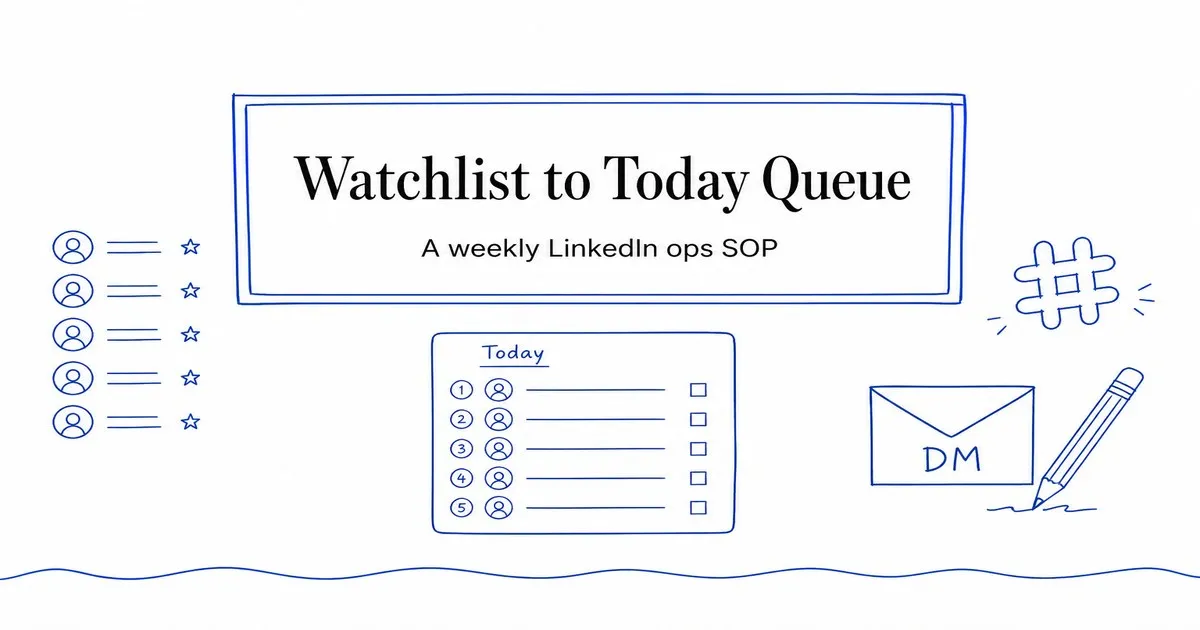
Most LinkedIn signal tools fail in the same place. They collect more activity than a founder can review, then leave the week without a repeatable pass from “who we watch” to “who we message.”
This is a weekly operating SOP, not a feature tour. It covers four moves: pick watched public profiles inside the live plan caps, run the Priority Queue (the screen this post’s title still calls the Today queue), hand qualified leads to Slack, and send every LinkedIn DM yourself. For the theory behind the signals, use the social signal tracking guide. For the message itself, use the engagement-to-DM playbook.
No invented close rates, reply rates, or time-to-first-lead. The point is a workflow you can run every week without expanding past what the current plans actually include.
Confirm the live plan caps
Pick the watchlist after you know the cap. Embers does not give you an unlimited profile pool, and it does not keep a second competitor bucket beside the watchlist.
Live limits, from the pricing page:
| Plan | Monthly price | Annual price | Connected LinkedIn accounts | Watched public profiles | Keywords |
|---|---|---|---|---|---|
| Solo | $49 | $39 per month billed annually | 1 | 5 | 10 |
| Team | $99 | $79 per month billed annually | 2 included, more at $59 | 10 per account | 25 per account |
| Signal War Room | $999 | Monthly engagement | Scoped with the Embers team | Scoped with the Embers team | Scoped with the Embers team |
Watched profiles are one count. A competitor, an influencer, an investor, and a teammate each use the same slot. If you are on Solo, five names per LinkedIn account is the whole list. If you are on Team, ten names per LinkedIn account is the whole list.
That is the useful constraint. A five- or ten-profile watchlist is small enough to choose on purpose. The lead qualification page is the right place to read how those profiles then get scored against your ICP.
Pick watched profiles for the week
Do this once a week, not every time a new creator shows up in the feed.
- Write down the public profiles whose posts actually attract the people you sell to.
- Label each name as competitor, influencer, investor, or teammate so you can see the mix.
- Cut the list to five names on Solo or ten names on Team, per connected LinkedIn account.
- Treat connected LinkedIn accounts and keywords as separate caps. They do not share the watched-profile count.
A workable Solo mix is often two competitors, two market voices, and one teammate or investor. A Team mix can add a second competitor, a client founder, or another market voice. Those are examples of how to spend the cap, not extra product pools.
Skip names that only produce polite likes from the wrong titles. The watchlist is there so ICP-fit people who engage with those posts can enter the queue. It is not a general research list.
The Watchlist reads public LinkedIn activity. It does not ask for a LinkedIn password, session cookies, or a browser extension. If you want the safety boundary in more detail, read LinkedIn automation restrictions.
Run the Priority Queue
After the week’s profiles are set, the daily move is the Priority Queue, not the raw feed.
The queue combines ICP fit, signal age, lead status, and follow-up timing. Each item explains why it is prioritized and keeps the original public signal attached: the post, comment, watched-profile activity, or keyword mention that surfaced the person.
For each row:
- Read the reason and the attached signal before you open LinkedIn.
- Open the public profile only if the person still looks like a fit.
- Decide one next action: message today, snooze, dismiss, or mark contacted after you send.
- Move to the next useful row. Do not empty the internet. Empty today’s short list.
The how it works page is the product view of this pass. The buying-signal tool matrix is the category view if you need to compare what Embers watches versus tools with unlimited tracked profiles.
Hand off in Slack
If more than one person works the same queue, Slack is the handoff inside this SOP.
Connect Slack from Settings → Integrations. Install the workspace, pick a channel, and send a test. After that, new qualified-lead cards post when someone qualifies.
What the live Slack card includes:
- Why they are a fit, plus the evidence.
- Contact fields on the payload when those fields are already enriched.
That is enough for a teammate to take the next manual step without asking you to re-explain the signal. The Slack delivery page is the source of record for this step.
This SOP does not set up HubSpot, Zapier, Make, Clay, or signed webhook recipes. Those paths live on the lead webhooks page and in the companion HubSpot and signed webhooks routing guide.
Send the DM yourself
Embers drafts. You send.
Open the person from the Priority Queue or the Slack card, read the public moment that surfaced them, and send a short message from your own LinkedIn account. Suggested drafts stay under your review. Embers does not send messages, connection requests, comments, or reactions.
A first-touch DM in this SOP should do three things:
- Name the public post or comment, not a generic compliment.
- Ask one question about their situation.
- Stop before the meeting ask.
The outreach workflow page is the product view. The engagement-to-DM playbook has message shapes you can reuse. Nothing in either place requires handing Embers your LinkedIn login.
What this SOP does not include
Leave these out of the weekly ritual unless you are reading the pages written for them:
- Native HubSpot setup, signed webhook recipes, and contact-field rules. Use the routing guide and the webhooks feature page.
- Unlimited watchlists. Solo is five watched profiles per LinkedIn account. Team is ten. That is not Traxy-style unlimited coverage. See Embers vs Traxy if that is the comparison you need.
- Automated LinkedIn actions. If the workflow needs your password, cookies, or an extension, it is a different product category.
- Outcome claims. This post does not publish reply rates, meeting rates, or time-to-first-lead.
The weekly loop is short on purpose: recast the watchlist, work the Priority Queue, let Slack carry the handoff, and send the DM yourself.
Frequently asked questions
How many watched profiles do Solo and Team include?
Solo includes five watched public profiles. Team includes ten per connected account. Watched profiles are one count that can be competitors, influencers, investors, or teammates. There is no separate competitor pool.
Does Embers send LinkedIn DMs for me?
No. Embers does not send messages, connection requests, comments, or reactions. You review the context, personalize the draft, and send from your own LinkedIn account. No LinkedIn password, session cookies, or browser extension is required.
What is the Priority Queue?
The Priority Queue is the prioritized list of people who deserve attention now. It combines ICP fit, signal age, lead status, and follow-up timing. Each item explains why it is prioritized and keeps the original public signal attached.
How does Slack fit this weekly SOP?
Connect Slack from Settings → Integrations, pick a channel, and send a test. After that, new qualified-lead cards post when someone qualifies. Each alert includes why they are a fit plus the evidence. Contact fields stay on the payload when enriched.
Where do HubSpot and signed webhooks fit?
This SOP stops at Slack handoff and the manual DM. Native HubSpot and signed lead webhooks are documented on the feature pages and in the companion routing guide. Do not treat this post as a routing setup manual.
Reading about LinkedIn lead gen? Check who's already engaging on your topics.
Free Signal Audit. One public signal, no email. Up to three with a work email. No card.
Scan a keyword free →No card. One public signal free. A work email unlocks up to three.
Related articles
Route Warm LinkedIn Leads to HubSpot With Signed Webhooks
Move Embers Priority Queue leads into Slack, native HubSpot, and signed webhooks, all on Solo and above. Zapier, Make, and Clay use recipes, not SDKs.
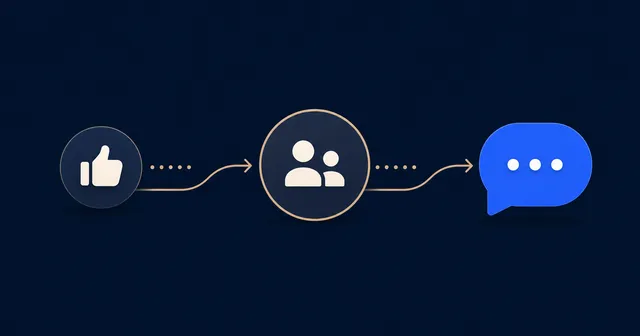
The LinkedIn Post Engagement to DM Playbook: From Like to Conversation in 3 Steps
How to turn LinkedIn post likes, comments, and reshares into qualified conversations. Timing, message structure, and reply benchmarks.
LinkedIn Cold Outreach Without Burning Your Account or Reputation
A LinkedIn cold outreach approach that uses public engagement as a bridge. Limits, message structure, and what to do when someone says no.